
This guide explains how to create properties in HubSpot and configure conditional logic to dynamically display and require additional fields based on user input.
1. Access Properties in HubSpot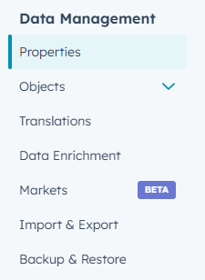
- Go to Settings
- Navigate to Data Management → Properties
- Select the object where the property will live (e.g., Contacts, Companies, Deals, or Custom Objects like Apprentice)
2. Create properties
The primary property will act as the trigger for your logic.
- Click Create property
- Define:
- Property name (e.g., SafeSTART)
- Field type (commonly Yes/No, dropdown, or checkbox)
- Create anothe property like SafeSTART Date
Best practice:
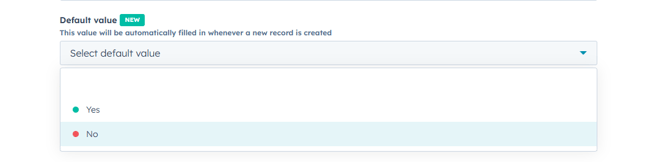
- Set a default value when applicable (e.g., default = No)
This ensures consistency across all new records and avoids incomplete data.
3. Configure Conditional Logic
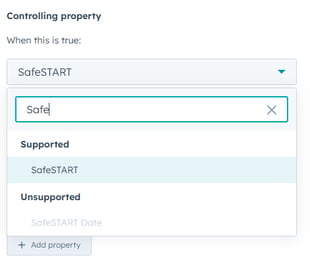
Now connect both properties.
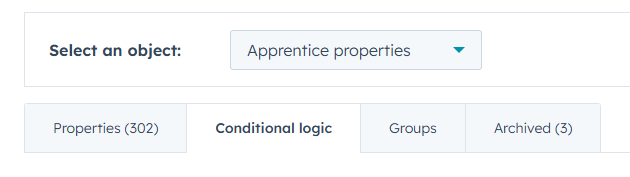
- Click Conditional logic
- Create a new logic
Example structure:
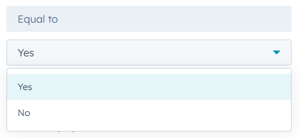
- When: Primary property = specific value (e.g., Yes)
- Then:
- Show property → Dependent property
- Set as → Required (recommended for data integrity)
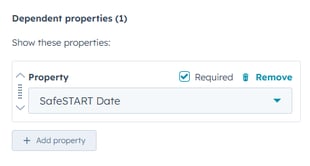
- Click Save logic